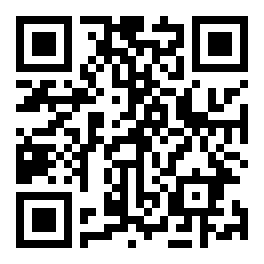
This browser or device may not support direct Web NFC writing. Use the NFC URL Payload above, or open an NFC writing app and write this URL into the NFC tag.
QR is for face-to-face sharing. Copy Link is for social media, email, WhatsApp, WeChat, notes, or cross-device transfer. NFC writes the same URL into a physical tag. RFID / UWB can map hardware ID to this Capability Link in the registry.
SSH Login Guide / SSH 登录指引
Runtime: kyle37.homelinked.tech
Username: kyle37
1. Your Login Command / 你的登录命令
ssh kyle37@kyle37.homelinked.tech
This command is used to enter your Hong Kong cloud Runtime.
这个命令用于进入你的香港云端 Runtime。
2. We Use SSH Key, Not Password / 我们使用 SSH Key,不使用密码
We do not use password login.
我们不使用密码登录。
You need to generate an SSH Key on your own computer.
你需要在自己的电脑上生成 SSH Key。
You only send the public key to Benny.
你只需要把 公钥 发给 Benny。
Never send your private key.
永远不要发送私钥。
Remember:
.pub = public key = safe to send
no .pub = private key = do not send
3. Mac Instructions / Mac 方法
Open Terminal.
打开 Terminal。
Generate SSH Key:
ssh-keygen -t ed25519
Press Enter all the way.
一路按 Enter。
Show your public key:
cat ~/.ssh/id_ed25519.pub
Copy the full line and send it to Benny.
复制完整一整行,发给 Benny。
After Benny adds your key, login:
ssh kyle37@kyle37.homelinked.tech
4. Windows PowerShell Instructions / Windows PowerShell 方法
Open PowerShell or Windows Terminal.
打开 PowerShell 或 Windows Terminal。
Generate SSH Key:
ssh-keygen -t ed25519
Press Enter all the way.
一路按 Enter。
Show your public key:
type $env:USERPROFILE\.ssh\id_ed25519.pub
Copy the full line and send it to Benny.
复制完整一整行,发给 Benny。
After Benny adds your key, login:
ssh kyle37@kyle37.homelinked.tech
5. If You Change Device / 如果你换设备
Your SSH Key belongs to the computer where it was created.
SSH Key 属于生成它的那台电脑。
If you change computer, use a school computer, office computer, Windows PC, MacBook, Linux machine, or company-provided device, you must generate a new SSH Key on that device.